[updated 2025-12-09 for ELRS v4)
ELRS is a bit of a sleeper - it's been around for a while, but if you're a fixed wing/LOS (line of site) flyer, then you may not have heard of it. You soon will though, especially if you use EdgeTX or OpenTX.
So what exactly is ELRS, and what do you need to get started? Read on, while I take you on a tour. Since ELRS is still evolving I won't cover everything in detail. Instead, I'll provide a overview of the important bits with links to the official documention.
What is ELRS?
ELRS stands for 'Express Long Range System'. It's a combination of hardware, software and RF protocols based on LoRa technology. Compared with ACCST and similar protocols, ELRS offers considerably greater range, as well as the ability to configure your own tradeoff between range and latency.
ELRS was originally conceived for long range use for drones. However, thanks to the introduction of PWM receivers from RadioMaster, Matek and others, ELRS is now a great option for line-of-sight flying. The firmware is open source and suitable hardware is available from several manufacturers.
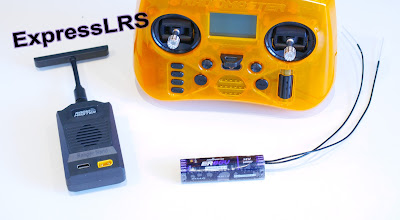
|
|
ELRS devices (clockwise from left): RadioMaster Ranger module, Pocket tx and ER8GV rx |
One great benefit is that devices can be configured and bound 'over the air' - no physical access is needed. By giving all your devices the same bind phrase, devices can be interoperable. Very handy if you want to switch to a backup transmitter, or swap out a receiver.
As for telemetry, some receivers offer integrated altitude and voltage sensors. External Hott telemetry sensors may also be used, and Radiomaster offer a ERS-GPS sensor for use with a selection of their receivers.
What you will need
To get going with ELRS, you'll need:
- a transmitter with a recent version of OpenTX or EdgeTX
- an ELRS 2.4 GHz RF module for the transmitter. The module may be built-in, or external.
- an ELRS receiver
Modules and receivers are available from several manufacturers including RadioMaster, Matek and HappyModel. Devices from different manufacturers can be mixed and matched.
Configuration tools
Unlike traditional radios, ELRS devices require some configuration. Yes, I know it sounds like a chore... but it's not difficult once you get up to speed with a few tools. These are:
- The ExpressLRS Lua script
- WebUI
- ELRS configurator
Let's look at each in turn:
ExpressLRS Lua script
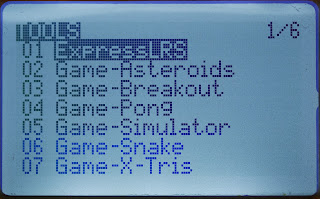
The ExpressLRS script is the traditional method of configuring ELRS devices. The script is accessed from the Tools menu:
|
| EdgeTX tools menu |
The script may be used for the following tasks:
- Configuration of the tx module (packet rate, RF power, switch mode, etc.)
- Placing the tx or rx module in WiFi mode
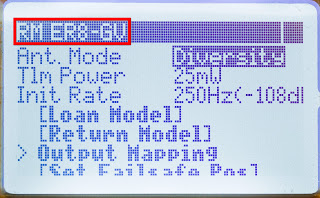
|
| Remote configuration of ER8GV receiver |
How to obtain the script
The ExpressLRS script is available from the ELRS website. For more info see ELRS page.
WebUI
A more modern way of configuring an ELRS device is via its WebUI.
The WebUI is a web page which is served up by the device's on-board web server. All the code resides in the device itself, so there's no separate software to install or keep up to date.
There is some overlap in features between the ExpressLRS script and WebUI. Where the WebUI comes in really useful is for entering alphanumeric data such as the bind phrase.
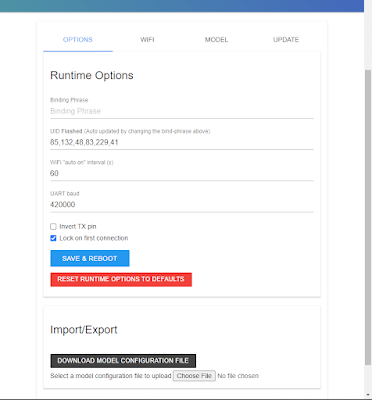
|
| ELRS device being configured via its WebUI |
Enabling WiFi mode
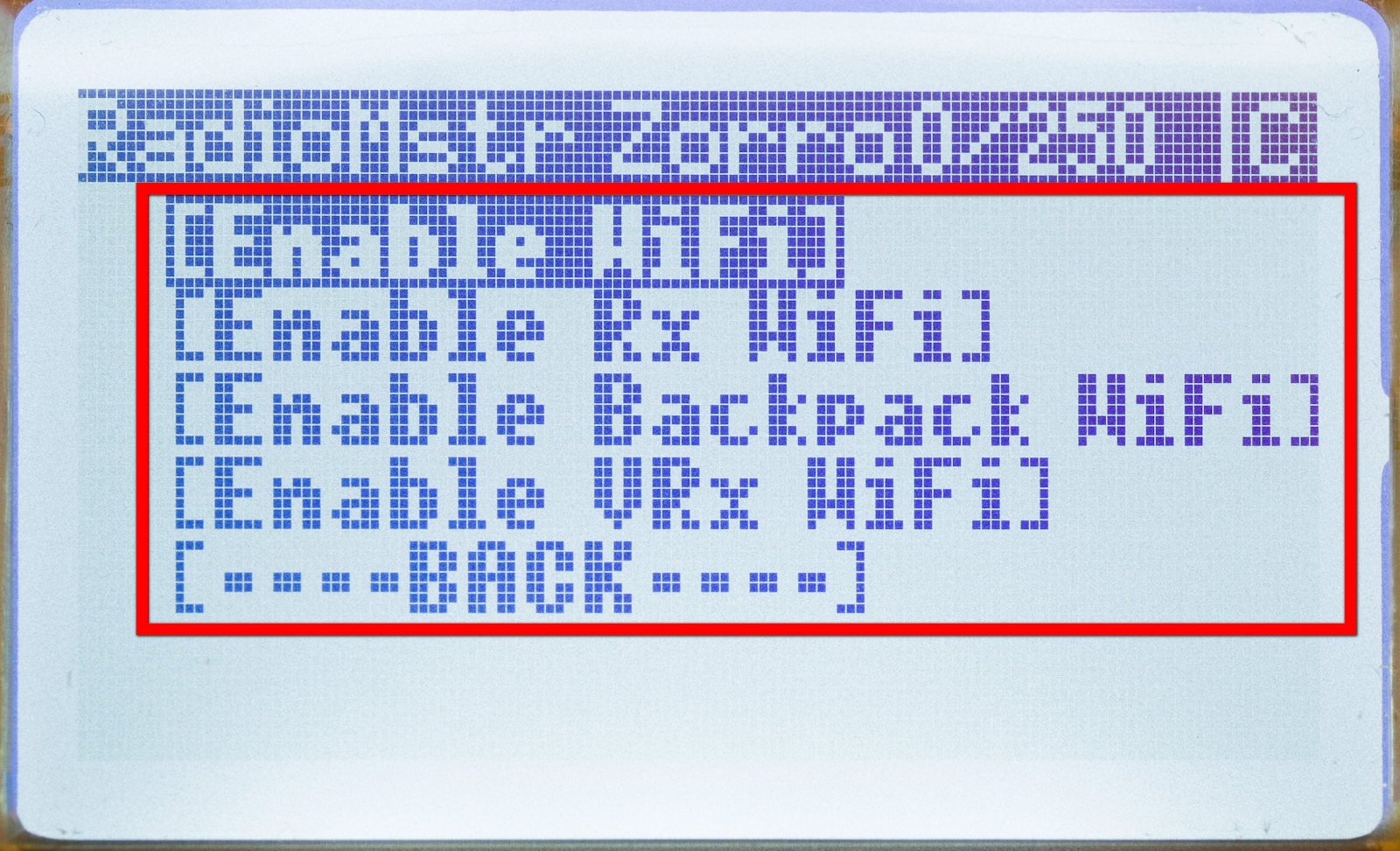
To access a device's WebUI, the device must be placed in WiFi mode. This can be done from the ExpressLRS script:
|
| ExpressLRS script: WiFi configuration menu |
Receivers may use an alternative method: with the transmitter switched off, power up the receiver. After 60 seconds without a connection the receiver will time out into WiFi mode.
Accessing WebUI in AP mode
Once in WiFi mode, the device acts as a WiFi access point (AP) with network name 'EXPRESSLRS_TX' or 'EXPRESSLRS_RX'.
To access the WebUI from your mobile device or computer, you must first switch from your home network to the device's network via your computer's network settings. Your internet browser should then fire up automatically and display the WebUI web page.
Accessing WebUI via your home WiFi
Instead of creating an access point, an ELRS device can be configured to use your home WiFi network. This removes the need for you to switch networks.
To configure a device to use your home network, first connect to it in AP mode and open the WebUI in the normal way. Next, go the WiFi tab and enter the your home network details (network name and pass code). You can then access the WebUI from any computer/mobile on that network.
Of course, you must be within range of your home WiFi, so this won't work on the field. (Unless your field is your back garden...). If your receiver can't find the home network, it'll drop into to AP mode.
For more info about WebUI, see ELRS page.
ELRS Configurator
The third and final tool is the ELRS Configurator. The ELRS Configurator is used to (a) remotely build and download ELRS firmware with your own configuration parameters and (b) flash the firmware to a device, via WiFi.
For more info, see ELRS page.

|
| ELRS Configurator |
ELRS concepts and terminology
In this section, we'll look some of the key skills for configuring your ELRS devices.
Binding
The recommended method of binding is via a bind phrase. Think up a unique phrase, and make a note of it. Then, using WebUI (via WiFi), assign the same bind phrase in each of your ELRS devices. Any of your receivers will now bind automatically on startup to any one of your transmitters. See also Model Match below.
Model Match
ELRS v3.2 and greater support model match. This works like model match in ACCST radios, and is designed to prevent crashes as a result of selecting the wrong model.
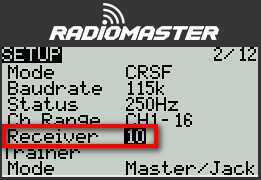
To use model match, you first assign a unique 'receiver number' in the transmitter's Model Setup menu.
|
| Setting the receiver number in EdgeTX |
Next, switch on the receiver. Then open the ExpressLRS Lua script, select External Devices, and select the receiver. Finally go to the Model Match field and toggle off and on. The receiver number from the Model Setup menu is copied 'over the air' to the receiver.
From now on, the receiver will only respond to setups which have that receiver number (as well as matching bind phrase).
Packet rate
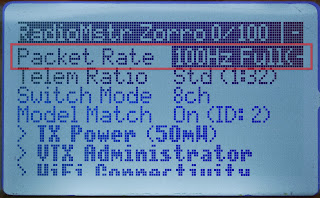
Packet rate is the number of data packets transmitted per second. It's configured in the transmitter module.
|
| Setting the packet rate |
There are various options for packet rate, each with its own tradeoff between latency and range. 100Hz is recommended by the developers for sailplane use.
Switch mode
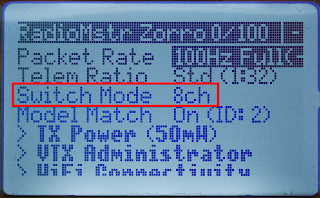
The switch mode determines how many channels are transmitted, and the resolution of each channel. Like packet rate, this is set in the transmitter module using the ExpressLRS script.
The switch modes are described on this page. For fixed wing/line of site use, the devs recommend Full Res 8Ch (I use this on all my models).
|
| Switch mode option in ELRS script |
Dynamic RF
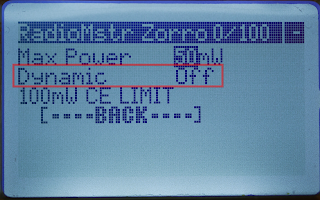
ELRS can be operated using fixed or dynamic RF power. The setting is configured in the Dynamic option of the Lua script:
|
|
Dynamic RF setting. |
If Dynamic is disabled, then the transmitter power is fixed. The drawback is that the battery will be drained excessively for much of the flight. For this reason I won't discuss this option further.
From here on, I’ll assume Dynamic is enabled. In this case the transmitter and receiver negotiate the RF power required based on RQly (link quality) telemetry. When the link is good, the transmitter will transmit at lower power. When the link drops, the power ramps up to compensate.
That's all very well, but what happens if telemetry is lost, for example if the model is out of telemetry range or the receiver is switched off? In that case, behaviour will depend on the arming status. We'll look at how to arm and disarm a little later, but for now, here are the key points:
- If telemetry is lost while the system is armed, the RF module will assume the model has gone out of range and will ramp up to Max Power.
- If telemetry is lost while the system is disarmed, then the transmitter will continue at the power at the moment telemetry was lost. This means you can switch off the receiver in the pits without blasting your neighbours, since the radiated power will be low due to the proximity of tx and rx. However, if you lose telemetry while flying, then power will not ramp up and you’re more likely to lose control. For this reason, the system should always be armed when in the air.
For drone work, where RF power may exceed 250 mW, it's normal to arm in the air, and disarm on landing.
However, for line of sight flying, high RF power is not needed. You can set Max Power to 100mW and keep the model permanently armed - this offers sufficient range without interfering with other pilots on the flight line when you switch off the receiver.
Using EU/LBT firmware
If using the EU/LBT variant of the ELRS firmware, the RF power is limited to 100mW. Still easily sufficient for line of sight operation,
Telemetry Ratio
The telemetry ratio (TLM) is the proportion of telemetry frames (downlink) to all frames (uplink and downlink). The smaller the ratio, the higher the telemetry rate.
TLM is configured via the ELRS Lua script. Start with the default ratio, and if you need a higher update rate (e.g. for altitude telemetry) then reduce the ratio.
Init rate
The initialisation rate is the packet rate which the receiver assumes when powered up. It then steps through all the available rates until it finds the correct rate for the transmitter.
This process can cause a connection delay; to minimise this delay it used to be possible to configure the initialisation rate via the Init rate configuration option. However with the latest firmware, the initialisation rate is saved automatically by instigating a failsafe. For more info, see Init rate.
Signal quality and RSSI alerts
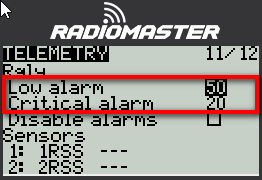
Normally, the built in signal alerts in OpenTX and EdgeTX are based on RSSI values. However when using an ELRS module, the alerts are based on RQly. Recommended thresholds are 50% (low) and 20% (critical). The alert thresholds are set in the Telemetry menu.
You can still have RSSI alerts if you wish, however you'll have to roll your own using logical switches and a special function. The thresholds for the alerts will depend on the switch mode and packet rate. For more info see signal health.
|
| Setting the alarm thresholds in EdgeTX |
Setting the failsafe
Failsafe may be set via the ExpressLRS script. Select 'Other Devices', choose the receiver, and then Set Failsafe Pos.

|
| Failsafe option in receiver menu |
Arming [updated 2025-12-09]
In this section I'll explain how ELRS arming works, and how to manage it.
Arming overview
ELRS incorportates an 'arming' function. This feature was originally conceived for use with flight controllers.
Of course, sailplanes don't have flight controllers or even motors, so you might think that the arming state can be ignored. However that's not the case, because arming also impacts the RF link. In particular, Dynamic RF is not fully functional while the system is disarmed.
For these reasons, you should take control of the arming state. Best practice is:
- When in the air, the model should always be armed.
- When on the ground, model can (optionally) be disarmed
All this means managing the arming function correctly. You can monitor the arming state by running the ExpressLRS script, the arming state is displayed in the top line.
For ELRS v4 and greater - via switch
Starting with ELRS v4, the easiest way to arm is via a switch (physical or logical). This method is recommended for new setups. To use this method you must be using EdgeTX 2.11.0 or greater, in which case you'll see an additional option in the Model setup>RF menu. For more info see v4.0.0 RC1 release notes.
Alternatively, you can use the CH5 method (see below). This is useful for setups which you may already have working in a previous version of ELRS.
For ELRS v3 and before - via CH5
If using ELRS v3 or prior, arming can only be performed via CH5, which means that you should not try to use CH5 for a regular function. PWM values >1500 µs are interpreted as armed, otherwise disarmed.
Start with a clean CH5. If CH5 is already assigned to a servo, then it should be swapped with an empty channel. My Channel Changer script makes this easy. Then set CH5 according to your chosen arming strategy (see next section).
Does reserving CH5 as an arming indicator mean that you lose the use of the CH5 pins on the receiver? Fortunately no, because you can map another channel to the CH5 pins. The obvious candidate is the channel that you swapped with CH5 earlier. To alter the mapping you can use either the ExpressLRS script or the receiver's WebUI. The mapping is performed in the receiver firmware.
Arming strategies
Regardless of ELRS version, there are basically three arming strategies:
-
Option 1: Configure for 'permanently armed'.
For ELRS v3 or prior, create a single mixer for CH5 with source set to 'MAX'.
For ELRS v4 (if arming via switch), set the switch source to 'ON' - Option 2: As above, but provide a method for disarming, for example a long press on a momentary button. This provides a little more flexibility, but may or may not be practical depending on your transmitter, and programming skills.
- Option 3: For electric models, link the arming function to an existing motor arming/cut function. This method is okay as long as you don't disarm while in the air.
Dynamic RF note: To avoid unnecessary current drain when the receiver is switched off, make sure to set Max RF power to no more than 100mW if using Dynamic RF. This is well in excess of what is needed for line-of-sight applications (it's also the maximum for EU/LBT firmware).
Benefits and drawbacks of ELRS
If you've got this far, congratulations, you're good to go with ELRS!
Finally, here are some thoughts on ELRS compared with traditional protocols like ACCST:
- Greater range means no more 'RF signal low/critical' alerts
- Dynamic RF power
- Remote configuration
- Based on well-proven open source project
- No need for frequency tuning (cf. MPM with ACCST)
- Lower price hardware
- More complicated configuration
- Changes are needed to legacy setups due to the CH5 requirements.
- Higher current drain of both tx and rx
All in all, ELRS is an exciting development for LoS flyers, and I'm sure we are going to hear more about it in the coming months. These really are interesting times!

7 comments:
Hi Ken, Ch5 is interpreted as the arming state regardless of resolution. Below centre (<1500us) is unarmed and above is armed. So to do it properly it’s still necessary to take control of Ch5 even if the servos are working normally.
Thanks Mike,
I saw the discussion in RC-groups and understood that it's important to take care of.
So I deleted my question before I saw your kind answer.
Thanks
Thanks Mike, very useful.
I understand that ELRS now also works with FrSky X18, X20 with Ethos. Any chance you could update this blog with that in mind including any gotchas.
Any idea if all the telemetry would work (e.g. Vario) with Ethos, I read something about different protocols (CRSF) so am not sure how Ethos would handle that - unlesss it's all taken care of with the code loaded onto the tx?
@Jerry As I understand it, Ethos at supports ELRS via an external ELRS or TWIN module, but I don't have any experience with either.
Great post
Thank you for that well-written, logical explanation. I'm just getting started in the RC hobby after 40 years of wanting to. This article contained bits and pieces I had not found anywhere else. Thanks!
Post a Comment